Decision Craft Wiki
Scenario Results & HUD
Everything you see during gameplay, explained.
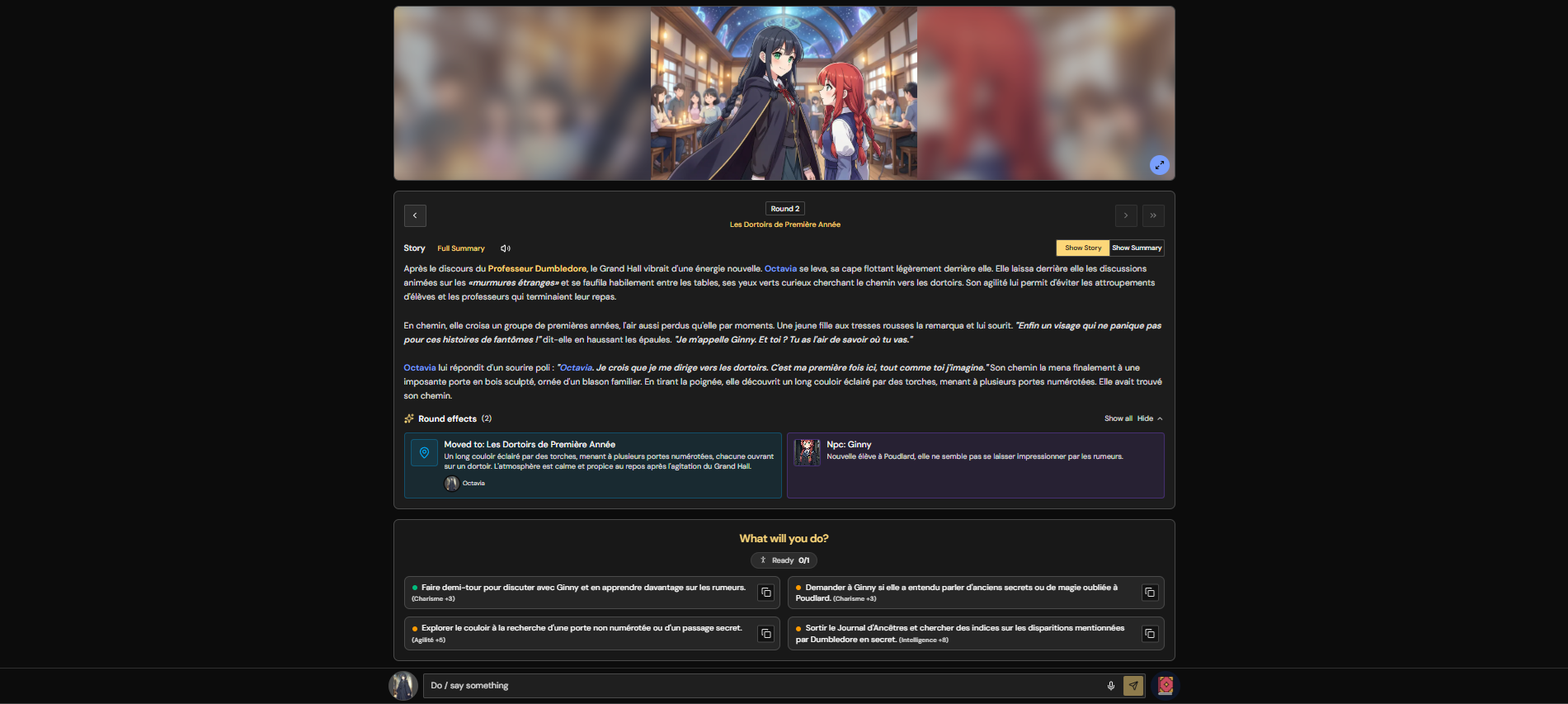
Scenario Results (The Main Game Screen)
During Scenario Result, the game uses a navigation sidebar, a scrollable round feed, and a fixed action bar. On smaller screens, open the sidebar from the menu button in the game header.
1) Game Sidebar
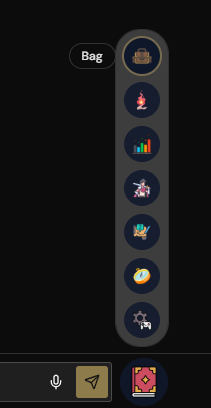
The sidebar shows the latest scene image or the world map. Use the toggle on the preview to switch between them; select the preview to open it. The navigation list opens your bag, skills, stats, characters, NPCs, quests, map, world, notepad, edit tools, and Room Info. Your player characters and the full summary are also available here.
2) Game Header And Round Navigation
- Select the location name to open the map and location details.
- Use the round arrows or number field to move between rounds.
- The header shows your credit balance and opens Room Info.
- The status indicator by the action bar shows how many connected players are ready, whether the game is waiting or generating, or if it needs a restart.
3) Round Feed
The main column is a scrollable history of the story. Each round can include:
- The story or summary, with text-to-speech controls.
- The scene image, which can be opened full-screen, downloaded, or blurred with confidential mode.
- Round effects, completed choices, quest outcomes, dialogue history, and eliminations when those events occur.
- Edit history for manual changes.
Scroll up to review earlier rounds. Use the round navigator to jump to a round, or the Latest button to return to the newest content.
4) Choices And Action Bar
AI choices appear in the round feed. You can vote for a choice or copy its text into the composer to edit it. The fixed action bar lets you write a custom action or switch between Act and Talk. Actions can be up to 480 characters. Use Enter to send and Shift + Enter to add a new line.
In Talk, choose up to 4 NPCs available at your character's current location, then write what your character says. Dialogue is limited to 20 exchanges per round. Speech-to-text is available when supported by your browser.
5) Character And NPC Views
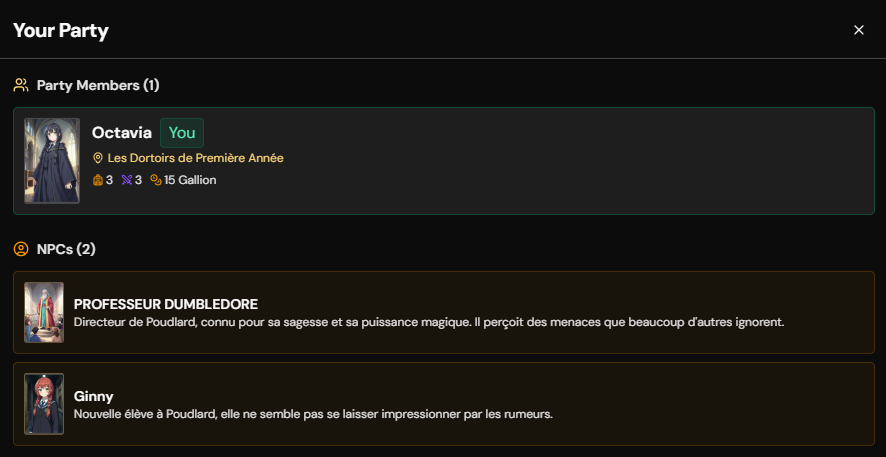
- Characters shows the player characters. Open a character to view its Bag, Skills, and Stats; using an item or skill can prefill a custom action.
- NPCs opens the separate list of non-player characters.
- Eliminated characters remain visible as fallen, and their players can keep watching as spectators.
6) Quests, World, And Room Info
- Quests shows the main quest and personal quests. Rewards can include money, items, skills, or story outcomes.
- Map shows locations and where characters and NPCs are. World shows the setting, lore, traits, and currency.
- Room Info contains the room code, player list, language, difficulty, text model, music, confidential mode, and Story Book download.
- The Story Book PDF is also available after the game ends.
7) Edit Tools And Leaving
Use Edit to correct important details when the AI gets something wrong. Players can update their own character text and revert portraits; the host can edit NPCs, items, skills, and quest outcomes. Changes appear in the round's edit history.
Use Leave in the top navigation to exit. If the host disconnects, the game pauses while they have a chance to return. A previous game can be used to recreate its lobby later.